
When working with complex structural equation models in SmartPLS, it’s essential to back up your projects regularly. Exporting and importing model files allows you to share your work with others, move between devices, or keep a safe copy in case of system failures. SmartPLS uses the .zip file format for model backups, making it easy to save and restore entire project structures with just a few clicks. In this tutorial, we’ll walk you through the step-by-step process of exporting and importing model backup files in SmartPLS.
How to Export a Model Backup File in SmartPLS
To export a model backup in SmartPLS, first open SmartPLS. Then, go to the Project Explorer on the left panel, right-click on the project name, and select Export Project from the menu. A window will appear asking you to choose the destination and filename for the backup. SmartPLS saves the backup as a compressed .zip file, which includes the model structure (with the .splsm extension), data files, and other project-related resources. After selecting the location, click Save. Your entire project will be saved in a ZIP file that can be safely stored, shared, or imported into SmartPLS on another device.
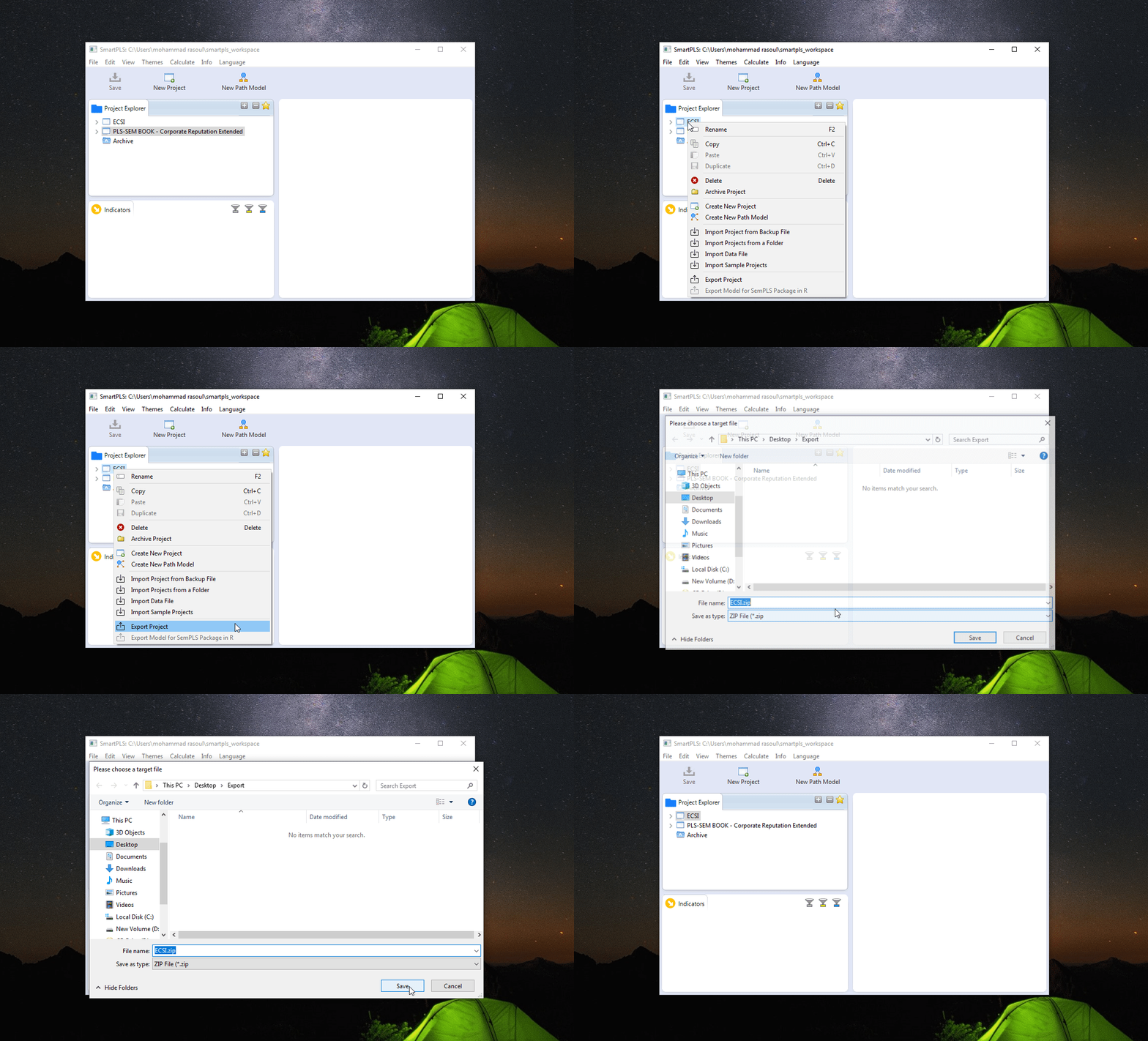
Export SmartPLS Model File
How to Import a Model Backup File in SmartPLS
To import a previously saved project into SmartPLS, make sure you have the backup ZIP file available on your system. Open SmartPLS, and from the main menu, go to File > Import > Import Project from backup file A dialog box will open where you can browse your computer to locate the .zip backup file. Select the ZIP file and click Finish. SmartPLS will automatically extract the contents and load the project into your workspace, including all models, datasets, and settings. Once the import is complete, your project will appear in the Project Explorer panel, and you can continue working with it as usual. This feature is particularly helpful when switching between devices or collaborating with other researchers.
Import SmartPLS Model File
Backing up and restoring projects in SmartPLS is a simple but essential practice to protect your work and ensure smooth collaboration. By exporting your model as a ZIP file, you can easily store, share, or move your project across devices without losing any data or settings. When importing, always make sure you’re using the correct .zip file created by SmartPLS, and avoid manually extracting or editing its contents, as this may lead to errors during import. For better organization, consider adding version numbers or dates to your backup file names (e.g., MyModel_v2_2025-07-23.zip). Also, keep separate folders for different projects to prevent confusion. Regularly backing up your models—especially before making major changes—is a good habit that can save you from accidental data loss or technical issues.
About the Author

Masoud Alimardi
I’ve analyzed thousands of datasets to reach my goal — transforming data into knowledge, one project at a time. And the story is still unfolding…